
Case Management and Intake: A Resource for BIDs, Business Alliances, and Non Profits
In the face of an emergency, nonprofits, CBOs, and neighbors will want to get organized. These are best practices we’ve developed from on the ground experience. Our experience is born from work with small businesses, not individuals, and this SOP may not be relevant for every disaster scenario.
Preparation
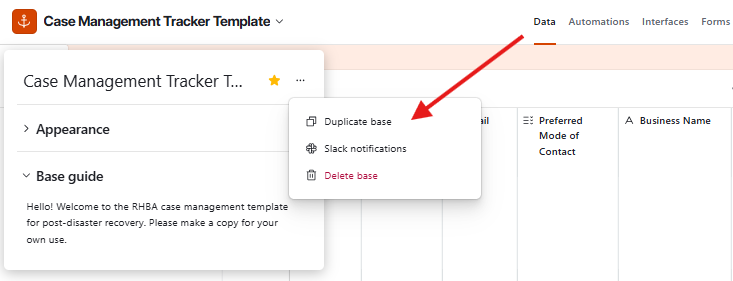
Access our Airtable case management template. Hover over the title, and click ‘duplicate base.’ Now you can rename the file, choose how much or little access you want to share, and share with partners and case managers.
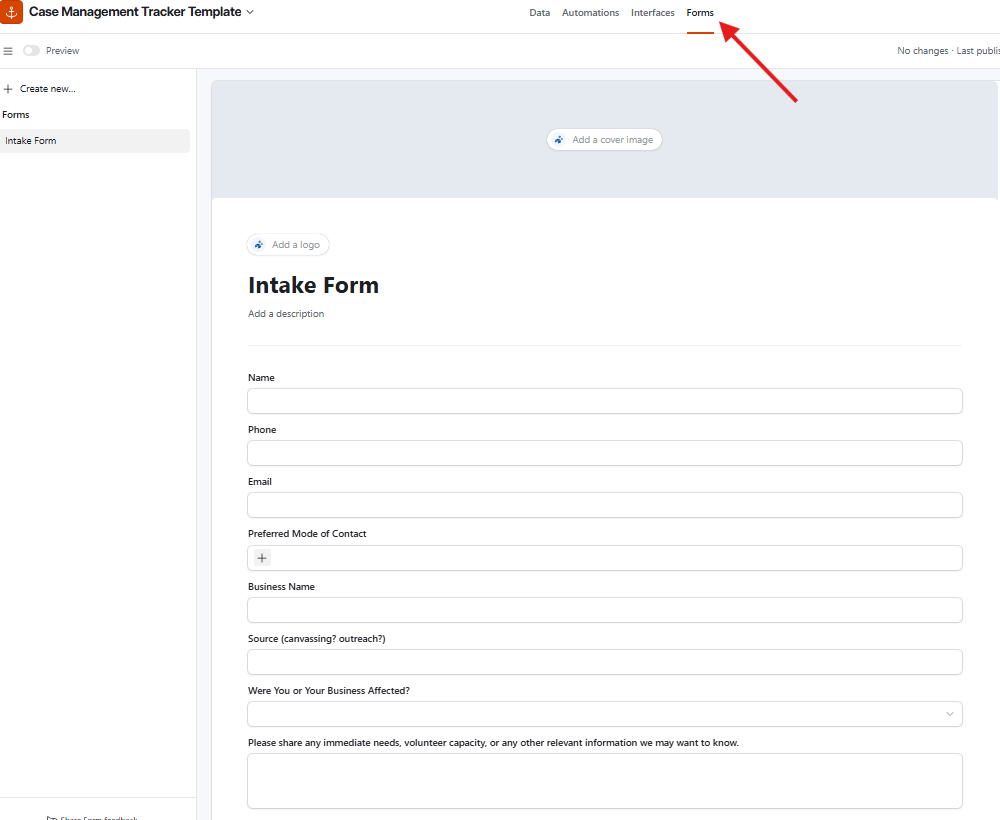
Navigate to the ‘Forms’ tab on the top navigation bar. You can add or remove inputs as you see fit or add a description/instructions relevant to your scenario. Anything in this form will be automatically input into the data tab.
Have the link and QR code ready to share for on the ground intake.
Step 2: Intake
After an emergency, things will be messy. That's okay. The priority is to get names in the system quickly. If you have time, before doing on the ground intake, it might be helpful to try and
Desktop IntakeAdd every business you believe may have been affected
Fill in whatever information you have. you don't need to complete every field right away
Fields like Preferred Mode of Contact can be filled in later as you learn more
On the Ground Intake Share the link or QR code to the intake form
Depending on the affected parties, it may even be helpful to have printed versions of the form to manually input later.
After Intake EventClean up duplicate entries
Manually enter any intake not taken digitally
Add in the source (something like the date and context of how you received the information)
Reach out to partner organizations to see if they did intake, avoid duplicating efforts if possible and share information if affected parties consent.
Step 2: How to Use the Fields
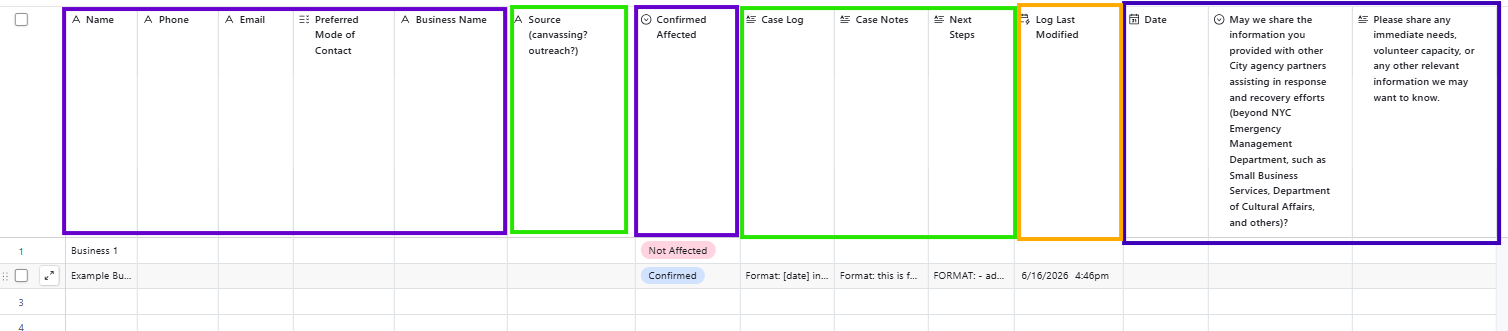
Purple = information input through the form
Orange = automatically updated information
Green = Information you will update
SourceUse the Source field to record how you heard about this business (e.g. canvassing, outreach, referral, word of mouth).
If you hear about a business through the grapevine, add them and note the source
This allows you to follow up later if needed and track how cases are coming in
Confirmed AffectedOnce you have more information, update the Confirmed Affected field:
Confirmed — business has been affected
Not Affected — business has not been affected
Case LogThe Case Log is your running contact history — a live record of every interaction.
Always enter the most recent update at the top
Every entry must include the date and your initials
Suggested Format:
[MM/DD/YY] INITIALS — Confirmed affected. Significant damage. In need of XYZ.
Case NotesCase Notes are for permanent, reference-level information — not contact history.
Use this field for things like:
Whether the business is in a sublet or special lease situation
Ongoing or recurring needs
Specific requests or accommodations
Any context that will matter long-term
Log Last ModifiedThis field updates automatically whenever the Case Log is changed — no action needed. Use it to quickly see which cases were recently active.
Next StepsUse the Next Steps field to track action items and to-dos that come out of each check-in.
Add bullet points for every next step or follow-up needed
Examples:
Send SBA loan information
Connect with SBS
Follow up on damage assessment
Schedule site visit
Once a next step has been completed or there is an update, log it in the Case Log with the date and your initials
Sample Case
ScenarioA burst pipe floods a local warehouse and the team is responding to the flood. A staff member with the initials BA heard from another confirmed affected business that ‘Pops Soda Pop’ was also affected by the flood damage. BA reaches out to Pops Soda Pop. They confirm they are affected and believe they have suffered a total loss.
Suggested Entries into FieldBefore reaching out
BA should input as much data about Pop's Soda Pop as she can and should mark them as ‘suspected’ in the confirmed column. Data around neighbors even when not affected is still helpful.
In the Case Log:
Put the most recent updates at the top with date and initials of who entered the log. And write your log. Something like:
[06/16] BA connected with business owner. they confirmed suspected total loss. interested in SBA loan if offered. insured. They shared that neighboring bays may be affected and that they have been in touch with the landlord.
In Next Steps:
- Follow up SBA loan if declared
- Follow up with neighboring affected bays
- Send info about insurance
In Case Notes:
Has insurance. Suspected total loss. Interested in SBA loan.